
In this article:
Configuring Module Settings in DvSum
Module Settings allow administrators to enable or disable DvSum modules and configure their availability at the organization level. These settings control access to Governance, Chat with Data, Data Quality, Lineage, and AI Orchestration features and can affect all users across the organization.
How to Access Module Settings
Go to Administration > Account Settings > Module Settings.
Choose from the three available module settings:
Governance
Chat with Data
Data Quality
Lineage
AI OrchestrationEnable or disable these settings as needed.
Governance
The Governance setting controls the availability of governance workflows for data domains and sub-domains.
When the Data Governance checkbox is enabled, administrators can configure governance workflows for domains and sub-domains. If the setting is disabled, the workflow option is not available for domains or sub-domains.
Fine-Grained Control
Fine-Grained Control allows administrators to apply governance settings selectively.
When Fine-Grained Control is enabled, the Default configuration provides options for determining how governance should be applied to newly added domains.
For example, if the Default setting is configured as Enabled, newly added domains will automatically have their governance workflow enabled without requiring manual configuration.
Administrators can also define exclusion criteria to prevent specific assets or terms from being included.
Consider this example: If governance is enabled for the Default domain and its terms, terms matching an exclusion criterion such as the Restricted tag will remain excluded from governance.
Once governance is enabled for a domain or sub-domain, users can enable the workflow from the corresponding Data Domain or Sub-Domain.
After the workflow is enabled every term in this domain will have governance enabled except for the term which has the tag "Restricted" as mentioned in the exclusion criteria:
And the existing Term which has the exclusion criteria won't have governance enabled:
Chat with Data
When enabled, Chat with Data allows users to interact with datasets using AI-powered agents.
After enabling Chat with Data from Module Settings, administrators can configure which data sources, tables, and columns are available to Chat with Data.
Fine-Grained Control
Under the Default settings, administrators can configure Chat with Data for specific data sources by moving the required sources from Disabled to Enabled.
For example, if the administrator wants to enable Chat with Data for only one specific source, that source can be moved to the Enabled list.
The configuration can be further refined using Table Exclusion Criteria and Column Exclusion Criteria.
For example, an administrator may configure the settings so that:
- Tables tagged Restricted are excluded from Chat with Data.
- Columns tagged Sensitive are excluded from Chat with Data.
In this configuration, all eligible tables within the enabled data source will be available to the agent except tables that match the configured exclusion criteria.
If Chat with Data is enabled for the Snowflake_4th_August data source and Restricted is configured as a table exclusion criterion, all tables within the data source will be available to agents except tables tagged Restricted.
For excluded columns, the columns will not be available in the Chat with Data experience.
Data Quality
When enabled, the Data Quality module allows users to monitor data integrity and quality scores.
Fine-Grained Control
Under the Default settings, administrators can configure Data Quality for specific data sources by moving the required sources from Disabled to Enabled.
The configuration can be further refined using Table Exclusion Criteria and Column Exclusion Criteria.
For example, an administrator may configure the settings so that:
- Tables tagged Restricted do not have the Data Quality functionality enabled.
- Columns tagged Sensitive are excluded from the Data Quality view.
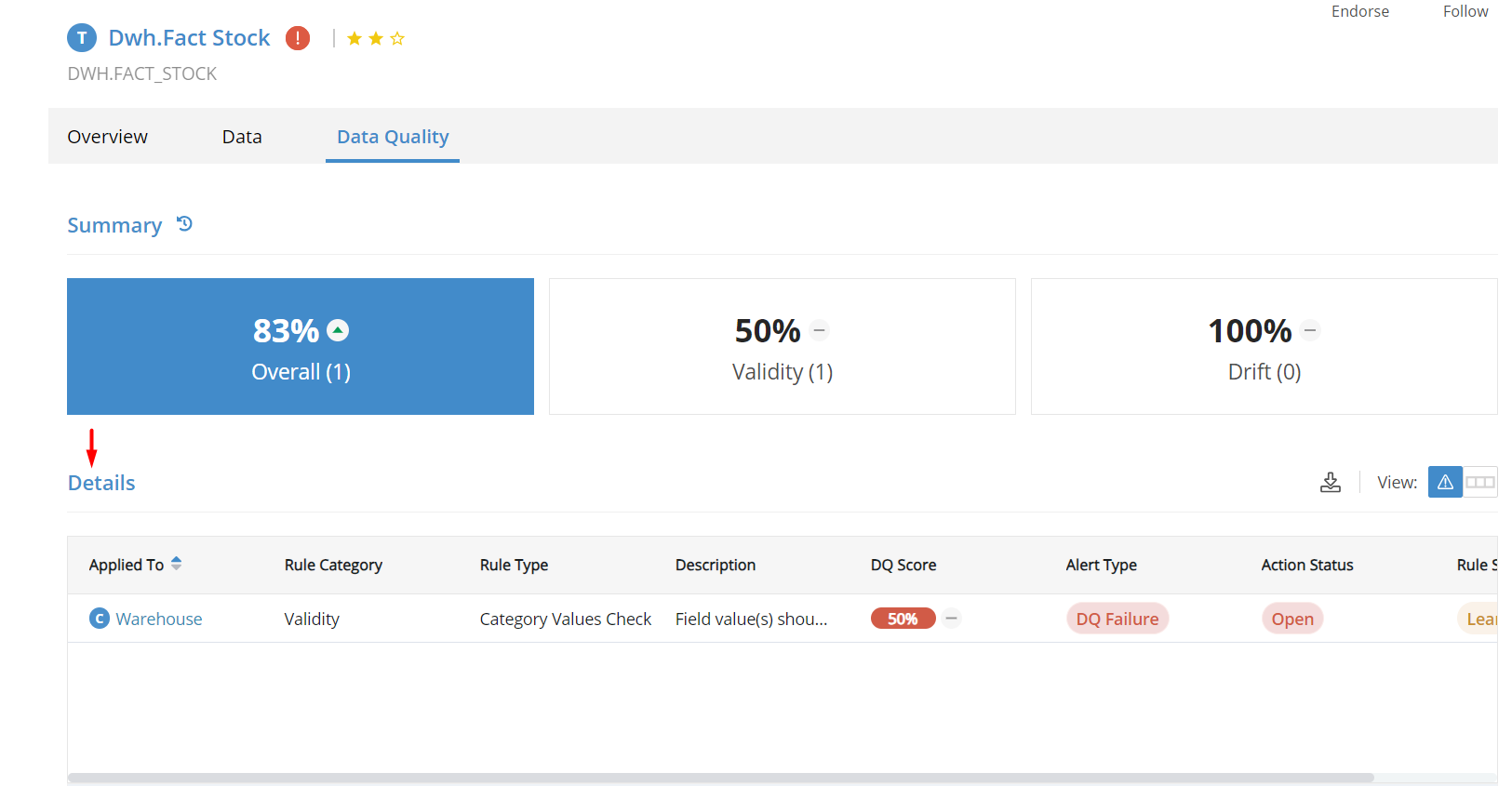
In this configuration, eligible tables within the enabled data source will have the Data Quality tab available, while tables matching the exclusion criteria will not.
Columns excluded through the configuration will not appear under the Details section of the Data Quality tab.
Lineage
The Data Lineage setting controls the availability of lineage visualization within DvSum.
When enabled, Data Lineage allows users to visualize and trace how data flows across Tables, Columns, and Reports.
When Data Lineage is enabled, the lineage view becomes available within applicable assets.
When Data Lineage is disabled, the lineage view is not available within assets.
AI Orchestration
AI Orchestration allows users to design and run workflows, define API operations, and automate processes across connected systems. It brings workflows, connections, and APIs together in a centralized orchestration experience.
Network Intelligence AI
The Network Intelligence AI option integrates AI-driven network analysis into the orchestration pipeline.
When Network Intelligence AI is enabled, a system collection template is automatically created when the configuration is saved.
For more information about Network Intelligence AI, including its configuration and usage, refer to the Network Intelligence AI article.
0 Comments